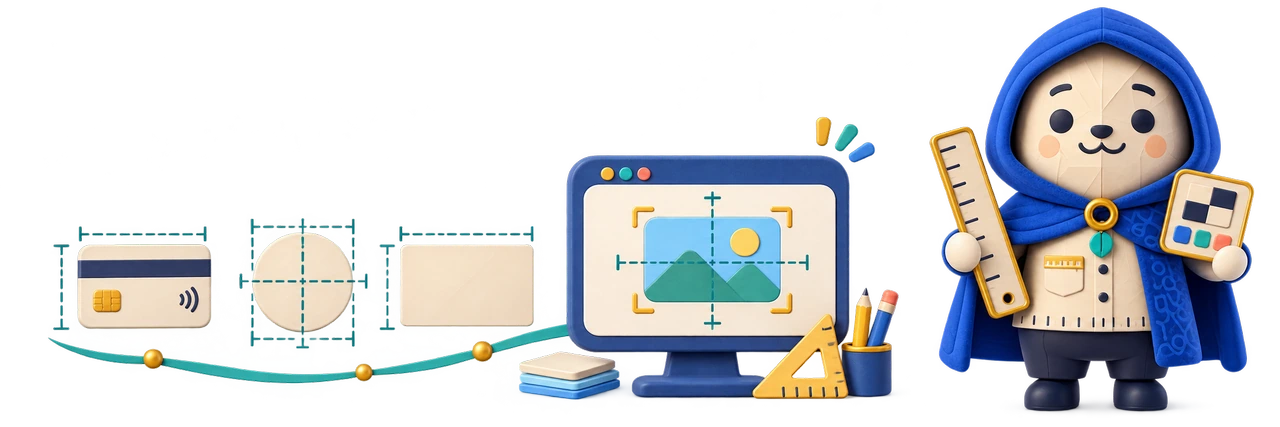
TrueSize connects screen pixels with physical dimensions, making size easier to judge through direct visual comparison rather than an abstract number alone.
A measurement can be precise and still hard to picture. TrueSize provides an early browser workspace for placing shapes and image references at dimensions that can be compared directly, using a calibrated relationship between screen pixels and physical size.
Set pixels per inch against a physical card or ruler, then enter dimensions in inches, centimetres or millimetres. The result is a comparison on the current display. Browser zoom, workspace zoom, monitor changes and display scaling affect how literally that comparison can be read.
What it is designed to do
The capabilities, in detail.
Calibrate the screen, enter meaningful dimensions and compare the result against a physical reference.
Establish the display scale
The calibration interface presents a standard-card reference and an editable pixels-per-inch value. Matching the reference against a real object creates the working conversion between physical dimensions and screen pixels. The application remembers a calibration flag, but that flag cannot prove that the browser has stayed on the same monitor or retained the same scaling.
Compare dimensioned shapes
Rectangles, squares, circles, ellipses and lines expose width and height controls with unit conversion. Place several references together to understand relative proportions, checking their physical scale against a ruler. This is a visual aid rather than a certified measuring instrument.
Bring an image into the comparison
A local image can become a workspace object with adjustable dimensions and contain, cover or stretch presentation. That makes a photograph or design useful alongside simple geometric references. The file's pixel dimensions do not establish the photographed object's real size; the person making the comparison still needs a known measurement or other trustworthy reference.
Arrange a readable measuring surface
Layer selection, dragging, resizing, duplication, colour and opacity controls help separate overlapping comparisons. Grid and ruler toggles support orientation, while snapping can regularize placement. The workspace also has a zoom control for navigation. Returning that zoom to 100 percent matters before treating the visible shape as a literal physical-size reference.
Save the local working arrangement
The source stores calibration and workspace items in browser-local storage when saved. This supports returning to a layout, but it is not an independent backup or a portable project export. Uploaded images currently use temporary object URLs, so retaining their source files and reloading them when necessary is important; saved metadata alone does not preserve those image bytes.
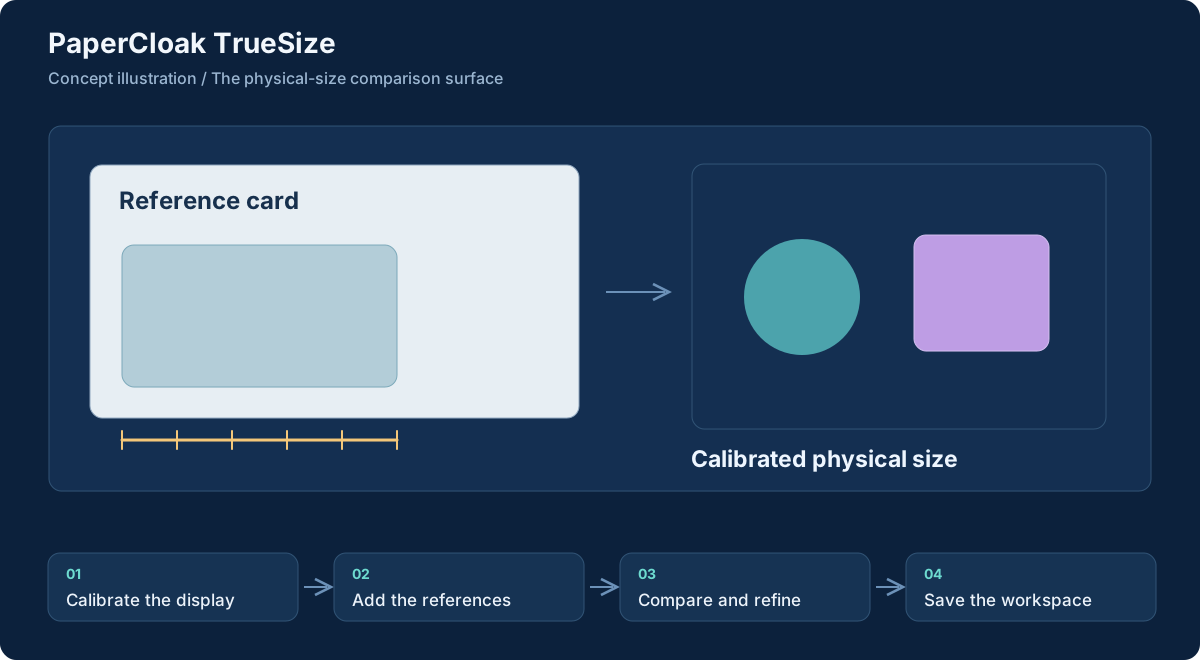
Workflow concept, illustrated. Select the graphic to open it at full size.
From input to useful result
How the work moves through.
01
Calibrate the display
Keep both zoom controls at 100 percent and match the on-screen reference to a physical object.
02
Add the references
Create shapes or load an image, entering dimensions from independently known measurements.
03
Compare and refine
Arrange objects and inspect their differences. Recheck against a physical reference when display conditions change.
04
Save the workspace
Keep the arrangement locally for another session, retaining original image files separately. Recheck calibration before continuing a later physical comparison.
A concrete example
Compare two label sizes before preparing the artwork
A creator is deciding between two rectangular label dimensions. After calibrating the display against a ruler, they create one rectangle for each option and enter the widths and heights in millimetres. Different border colours and a little transparency make the comparison easy to read. A local image can provide a visual reference inside the intended footprint.
The comparison helps reveal proportions, but does not prove print accuracy, material fit or manufacturing tolerance. Before ordering, confirm dimensions in the production tool and check a physical sample. TrueSize depends on a known, checked display setup.
What comes out of the work
Results you can understand.
Dimensioned visual comparisons
Shapes and image references arranged around entered physical measurements and the selected display scale.
Local workspace state
Saved item settings and calibration information in the current browser, with original image files retained separately.
Better sizing decisions
A tangible view of proportions that complements a ruler, production specifications and physical checks.
Built around
Principles that shape the product.
Display-specific calibration
Dimensioned shapes and image comparisons
A locally saved browser workspace
Connected work
A clear role in the family.
Art is an adjacent workspace for preparing the images used in a comparison.
Stitch concerns image assembly; TrueSize concentrates on their apparent physical dimensions.
Worth understanding
Questions and boundaries.
Will the same calibration work on another monitor?
Do not assume so. Recalibrate after changing monitors or display scaling, and keep browser and workspace zoom at 100 percent for physical-size comparisons.
Does it measure objects from a photograph automatically?
No. An uploaded image is a visual object. Establish its physical dimensions from a known reference rather than treating its pixel size as a real-world measurement.
Can I export a print-ready template?
A print-ready or manufacturing export is not established by the inspected implementation. The current focus is the on-screen comparison and local workspace state.